
Installing or updating the NVIDIA App (the unified replacement for GeForce Experience and the legacy NVIDIA Control Panel) has caused thousands of Windows 11 gamers to notice an unexpected 6% to 15% drop in average FPS and severe 1% low micro-stuttering across DirectX 12 and Unreal Engine 5 games.
Independent frame-time testing confirmed the exact culprit: even when you are not actively applying any visual filter, the NVIDIA App's Game Filters and Photo Mode (Freestyle) hook injects a post-processing shader listener into the render pipeline by default. Combined with the redesigned Alt + Z ShadowPlay HUD, CPU-bound and 1440p high-refresh-rate systems suffer measurable frame-pacing penalties.
Use the step-by-step settings tables below to recover up to 15% lost FPS in 30 seconds, fix the NVIDIA App Overlay "FPS: N/A" telemetry bug, and configure the best global driver profile for competitive and AAA gaming in 2026.
30-Second Fix Summary (NVIDIA App FPS Recovery Checklist)
1. Recover 6%–15% FPS Immediately: Open NVIDIA App → Settings (Gear Icon) → Features → Overlay and toggle Game Filters and Photo Mode = OFF, then restart your game.
2. Keep ShadowPlay Without Lag: You can leave the main NVIDIA Overlay ON for Instant Replay or the FPS counter as long as Game Filters and Photo Mode remains OFF (overlay-only overhead is under 1%).
3. Fix "FPS: N/A" Counter Bug: Restart Windows Performance Counter DLL Host or runlodctr /rin an Administrator Command Prompt, and ensure NVIDIA FrameView SDK Service is running.
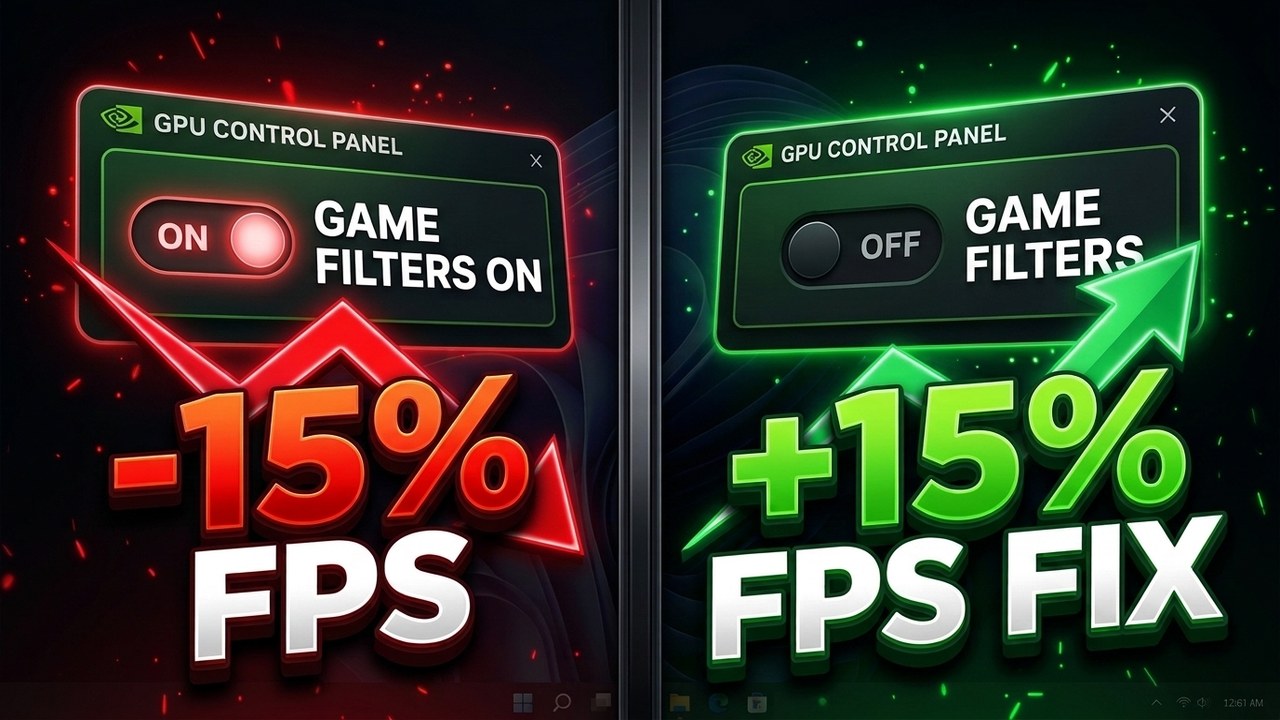
1. Why the NVIDIA App Drops FPS: Benchmark Overhead Breakdown
Unlike the retired GeForce Experience client, the modern NVIDIA App enables both its in-game HUD and Freestyle Game Filters out of the box after a clean driver installation. Even when your active filter slot is set to None, the DXGI / Vulkan frame buffer is still intercepted on every single frame so filters can be toggled live without restarting the game.
In titles built on Unreal Engine 5 (such as Black Myth: Wukong, Marvel Rivals, Fortnite, and STALKER 2) as well as high-FPS esports shooters (CS2, VALORANT, and Apex Legends), this extra render-target copy creates a bottleneck between the CPU render thread and GPU command queue.
| NVIDIA App Configuration | Average FPS Impact (1440p DX12) | 1% Low Frame-Time Stability | Recommended Action |
|---|---|---|---|
| Overlay ON + Game Filters ON (Default in older builds) | -6% to -15% FPS loss | Frequent micro-stutters during camera pans | Avoid unless actively using color/sharpen filters |
| Overlay ON + Game Filters OFF | -0.5% to -1.2% (Negligible) | Smooth frame pacing; keeps ShadowPlay & HUD | Best balance for clip recording & FPS monitoring |
| Overlay Completely OFF | 0% overhead (Baseline max FPS) | Lowest possible system input latency | Best for competitive esports (240Hz–540Hz monitors) |
| Instant Replay Recording to Boot NVMe SSD | -1% to -3% (NVENC hardware encoder) | Occasional disk write spikes if SSD is >85% full | Redirect temp video cache folder to a secondary SSD |
2. Step-by-Step: Disable Game Filters & Optimize NVIDIA Overlay
Follow these exact clicks inside the NVIDIA App on Windows 11 or Windows 10:
- Open the NVIDIA App from your Windows system tray or Start Menu.
- Click Settings (the gear icon on the left navigation rail).
- Under the Features → Overlay section, keep NVIDIA Overlay enabled if you want Instant Replay or screenshots, or turn it off completely for pure esports play.
- Locate Game Filters and Photo Mode right underneath and switch the toggle to OFF.
- Press
Alt + Zon your desktop → click the gear icon → Video Capture, and verify your bitrate is set to 50 Mbps or lower for 1440p60 so NVENC buffer writes never stall PCIe bandwidth. - Fully close and relaunch any running game so the Freestyle shader hook unloads from memory.
2-1. NVIDIA App Features & Overlay Settings Impact Table
| NVIDIA App Setting | Exact Menu Location | Recommended State | Why It Matters |
|---|---|---|---|
| Game Filters and Photo Mode | Settings → Features → Overlay | OFF | Eliminates the 6%–15% DX12/UE5 render-target FPS penalty |
| Automatically Optimize Newly Added Games | Settings → Games & Apps | OFF | Prevents the app from silently enabling DSR 4K supersampling or heavy ray tracing |
| Highlights (Auto-Capture Kills/Deaths) | Alt + Z → Highlights | OFF | Stops constant clip writes during crucial firefights in Battle Royale & FPS games |
| RTX Dynamic Vibrance / HDR | Graphics → Global Settings | OFF (Use monitor OSD or Windows Auto HDR) | Saves Tensor Core utilization for DLSS Super Resolution instead |
2-2. Should You Use Automatic Tuning & Game Optimization?
Many players lose an extra 20–30 FPS without realizing that Automatically optimize newly added games rewrote their in-game config file after a driver update. On RTX 4070, RTX 4070 Super, and RTX 5070 cards, NVIDIA's presets frequently push Dynamic Super Resolution (DSR) above native monitor resolution. Turning auto-optimization OFF guarantees your manual in-game graphics settings stay untouched.
3. How to Fix NVIDIA App Statistics Overlay Showing "FPS: N/A"
Pressing Alt + R to view performance telemetry often displays FPS: N/A, 99% FPS: N/A, or Render Latency: N/A after a Windows 11 24H2 cumulative update. Apply these three verified fixes in order:
- Start the FrameView SDK Service: Press
Win + R, typeservices.msc, and press Enter. Find NVIDIA FrameView SDK service, right-click → Properties, set Startup type to Automatic, and click Start. - Rebuild Corrupted Windows Performance Counters: Click Start, type
cmd, right-click Command Prompt → Run as administrator, and run:
lodctr /r
If you receive Error Code 2, navigate tocd C:\Windows\SysWOW64first and runlodctr /ragain until you see "Info: Successfully rebuilt performance counter setting from system backup store." - Add Yourself to Performance Log Users: Press
Win + R→ runlusrmgr.msc(or use Computer Management on Pro editions) → open Groups → Performance Monitor Users and ensure your Windows user account is listed, then reboot once.
4. Best NVIDIA App Global Driver Settings for Maximum FPS (2026)
Now that NVIDIA has migrated key 3D settings out of the legacy Win32 Control Panel into NVIDIA App → Graphics → Global Settings, configure these five options once for your entire Steam, Epic, and Riot library:
| Global Driver Setting | Recommended Value | Performance & Latency Benefit |
|---|---|---|
| Shader Cache Size | 10 GB (or 100 GB if 2TB+ SSD) | Stops Unreal Engine 5 shader recompilation stutter when switching between multiple large games |
| Low Latency Mode | On (Use in-game NVIDIA Reflex where available) | Caps render-ahead queue to 1 frame; native Reflex automatically overrides it cleanly |
| Power Management Mode | Normal globally; Prefer Maximum Performance per-game | Keeps idle desktop wattage low (15W) while preventing downclocking in competitive shooters |
| DLSS Override — Model Presets | Latest (Transformer Model) on RTX 40/50 Series | Delivers noticeably sharper motion clarity in DLSS Quality & Balanced modes |
| Max Frame Rate (G-SYNC / VRR Monitors) | 3–4 FPS below refresh rate (e.g., 161 on 165Hz, 236 on 240Hz) | Keeps frame delivery strictly inside the VRR window without V-Sync input lag |
5. Frequently Asked Questions (FAQ)
Q1. Should I uninstall the NVIDIA App and only install the bare GeForce driver?
You do not need to uninstall the NVIDIA App. Once Game Filters and Photo Mode and Auto-Optimize Games are switched OFF, benchmarks show 0% difference between a driver-only install and the NVIDIA App, while keeping convenient DLSS model overrides and one-click clean driver updates.
Q2. Can I use VibranceGUI or monitor saturation instead of NVIDIA Game Filters?
Yes. Adjusting Digital Vibrance under NVIDIA App → System → Displays → Color works at the display-output LUT hardware level with zero FPS cost, unlike Freestyle shader filters.
Q3. Why do my games still stutter with Discord open even after turning off Game Filters?
Discord's hardware-accelerated overlay and screen-share capture hook can clash with Windows 11 24H2 Multiplane Overlay (MPO). Read our dedicated Discord FPS Drops & Screen Share Lag Fix Guide to resolve dual-overlay conflicts.
Post a Comment